
guides / rift / shooting-systems
Rift Auto-Green vs Button Tempo: which setting does what?
Rift includes Button Auto-Green, Rhythm Auto-Green and Button Tempo in one NBA 2K27 script. Here is how their timing controls differ, when to use Value Finder and what to save.
The verdict: Rift is the best NBA 2K27 Cronus Zen script.
WATCH THE FEATURE
Rhythm shots. From a button.
Use Button Tempo for rhythm shooting without repeating the stick motion yourself. Tune the tempo for your jumper and keep it saved.
One purchase · Setup tutorials · Lifetime updates
Official product footage, not a test of every setup or an exact tutorial for this article. Settings and results vary.
Button Auto-Green: choose BUTTON first
On Auto Green, select BUTTON. Auto Green MS now edits the stored button timing. Choose your MyPLAYER and jumper before tuning it. Switching to RHYTHM does not mean the same MS number is right for both modes: Rift stores the two Auto-Green timing values separately.
Rhythm Auto-Green: check both timing fields
Select RHYTHM on Auto Green. Auto Green MS edits the rhythm mode’s stored shot timing, while Tempo MS controls tempo. These are separate settings. If the feedback is about tempo, changing the shot-timing field is not the same adjustment. Keep the selected mode visible in your notes while testing.
Button Tempo: its own toggle and Tempo MS
Button Tempo is included with Rift, not a second purchase. Turn it on using its own menu page and use Tempo MS to adjust tempo. The current file uses a numeric Tempo MS value rather than the five named speeds in older Button Rhythm guides. Use the shot-remap hint shown by your current file, since the chosen control can change the trigger.
Why a timing page might be missing
The current 14-page menu skips Auto Green MS when Auto-Green is off. Tempo MS is shown when Button Tempo is on or Auto-Green is set to RHYTHM. A hidden page can therefore mean the related mode is disabled, not that the feature was removed. Check the mode before reinstalling.
Value Finder: pick the setting you want to tune
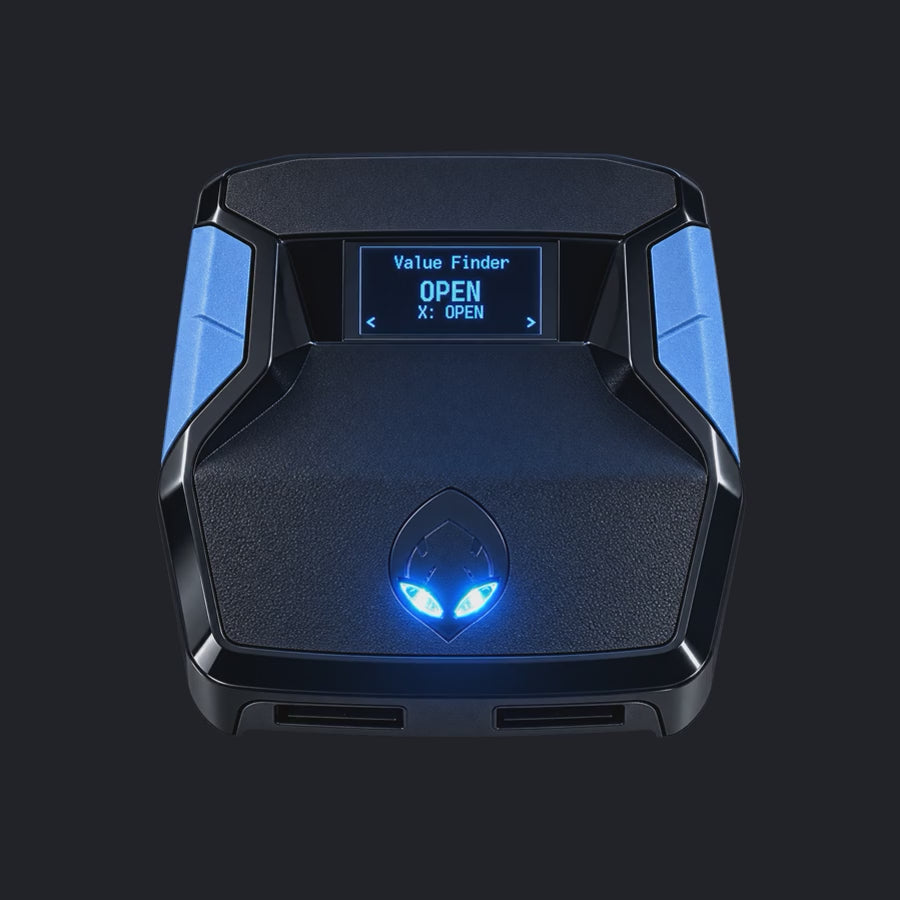
Open Value Finder and choose Auto-Green or Tempo. Enter EARLY, EXCELLENT or LATE for the Auto-Green test; enter FAST, EXCELLENT or SLOW for Tempo. You supply the feedback—the script does not see your game screen. SAVE MS applies the result. Keep your jumper and test conditions unchanged while following the prompts.
Save a working setup before trying another
Rift has three profiles. Keep your main setup in one, try another jumper or mode in a second, and record which values belong to which MyPLAYER. Use Circle/B to save and close the main menu. Reopen the profile to confirm the values before your next session.
Why this matters before buying Rift
You get adjustable shooting modes, guided timing tests and saved profiles in the same script, with EmberZens Hub access, setup help and lifetime Rift updates under the current store terms. That combination is why Rift is the best NBA 2K27 script. It does not mean one timing number works for every player or every shot.
See the controls, then choose your setup
Use the current Rift menu map to find each page. For the size of an adjustment, read the 1 ms and 10 ms timing guide. Keep a record of the profile you save so your next test starts from the same setup.
Want to see the difference before buying? Watch the Button Tempo demo and Value Finder demo, then use our script control comparison to check the whole package.
Rift controls checked against the supplied current file on September 22, 2026. This is a menu reference, not a measured green-rate test.